

A memorial portrait can become polished enough that relatives stop recognizing the person. Fine lines disappear, the mouth changes shape and tired eyes become generically bright. The image is cleaner, yet the expression that family members remember has been replaced by a smoother face.
Restoration should remove damage before it removes identity. An AI Photo Editor can help create careful candidates from a scanned portrait, but the original and family recognition remain the standard.
PicEditor AI accepts an uploaded image and an editing instruction. Start the AI Photo Editor request with one damaged area, compare each pass with the scan and retain an untouched source throughout the work.
Identify The Expression Anchors Before Retouching
Ask close relatives which features make the expression familiar. They may point to one raised eyebrow, a slight asymmetry in the smile, the way the eyes narrow or a crease that appears only on one side. Record those observations on a copy of the source.
Distinguish Print Damage From Familiar Facial Details
A scratch crossing the cheek is damage. A line beside the mouth may be part of age and expression. Dust can be removed; a mole or scar may identify the person. Do not classify every irregularity as a flaw merely because modern portrait filters tend to smooth it.
Use another photograph from a similar period if available. It can confirm whether a feature belongs to the person or to the damaged print. A much younger or later portrait may show identity but not the same face shape, hair or expression.
Choose The Portrait’s Intended Use. A small service program, framed display and archival record need different crops and tonal treatment. Set the output size before restoration. Excessive detail invented for a large print is not an improvement when the source never contained it.
Check who selected the portrait and whether everyone pictured has agreed to its use. A group photograph may hold the best expression but introduce people who do not want to appear in a public memorial notice. Cropping can be more faithful than removing them and generating a background that changes the original occasion.
In a separate image editor, mark dust, tears, chemical spots and missing paper on a reference copy. Use another color for sensitive facial zones: eyes, mouth, brows, hairline and distinctive marks. These marks guide the review; they are not a claim that the generation tool will enforce a mask. Repair the background and clothing first so reviewers can see the effect without changing the face.
| Feature | Likely treatment | Review question |
| Dust spot | Remove locally | Was any facial mark lost? |
| Paper tear | Fill from nearby texture | Does it cross a feature? |
| Expression line | Preserve | Do relatives recognize it? |
| Missing eye detail | Leave cautious | Is the source sufficient? |
| Background stain | Reduce | Does contrast stay natural? |
Do Not Use Beauty Retouching As Restoration
Skin smoothing, eye enlargement and facial symmetry correction belong to a different task. They may follow contemporary portrait preferences but change how a real person looked. Write “repair print damage while preserving age and expression,” then reject candidates that beautify beyond that boundary.
PicEditor AI candidates may appear convincing at first glance. In the separate editor, overlay them with the scan and alternate visibility. A shifted eyelid or mouth corner becomes easier to see when the versions alternate rather than sit side by side.
Restore The Portrait In Small Reversible Passes
Begin with high-confidence areas outside the face. Save a new version after background cleanup, clothing repair and each facial zone. Small passes make it possible to return to the last recognizable version instead of accepting or discarding one large transformation.
Repair One Feature At A Time
If a scratch crosses the eyebrow, work only on that crop and keep the other brow visible as context. Do not ask the model to “fix the whole face.” After each pass, compare shape, spacing and expression at both close zoom and normal viewing size.
When using a photo editor AI result, treat plausible missing pixels as interpretation. A photo editor AI candidate cannot establish an eye edge or tooth line that the source does not reveal. Prefer a soft unresolved area to crisp anatomy supported only by the generated version.
Keep Tonal Correction Global And Gentle. Faded prints may benefit from balanced contrast and color correction. Watch whether stronger contrast hardens the expression or hides subtle shadow around the mouth. Prepare a neutral version before testing warmer display treatments, and keep the archive master close to the source.
If the portrait is black and white, colorization should be a separate optional derivative. Skin, clothing and eye colors may be unknown, and a plausible palette can become family “memory” after repeated sharing. Label the colorized version clearly and do not let it replace the monochrome restoration in the archive.
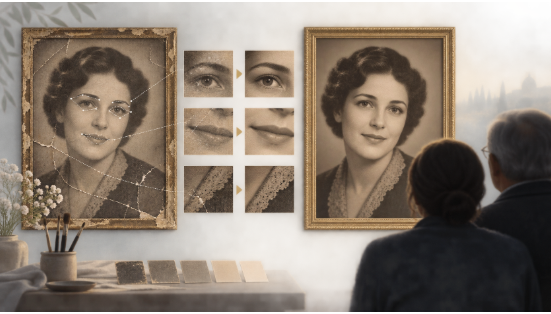
Review The Expression Before Surface Polish
Show the source and restoration to at least two relatives separately. Ask what expression they see and which feature feels most familiar. Avoid asking only whether the picture looks good; people may praise technical cleanliness while noticing that the person feels wrong.
Use A Recognition Check Without Leading
Place the candidate among other family portraits and ask viewers to identify the person and period. Then ask what changed. If several people mention the same altered smile or gaze, return to the earlier pass even if the candidate is sharper.
Review the actual print size from normal distance. At that scale, a little remaining grain may disappear while an expression change remains. Do not chase microscopic smoothness that will never be seen in the final display.
Resolve Disagreement By Preserving More Source. Relatives may remember a face differently. When evidence and memory conflict, make the less aggressive version the archive choice. A display copy can be slightly warmer or cleaner, but it should not settle an uncertain feature by inventing a definitive one.
Keep the review calm and time-bounded. Grief can make a portrait decision unusually difficult, and endless candidate generation rarely resolves an uncertain source. Present two carefully bounded versions with the same crop, explain the differences and allow the family to choose the one that feels recognizable without claiming technical certainty.
Keep The Original And Every Accepted Decision
PicEditor AI fits a memorial workflow as a controlled restoration aid, not as a replacement portrait maker. Preserve the original scan, masks, prompts, intermediate passes and final derivative with clear names.
Write a brief restoration note explaining which damage was repaired and whether any area remained uncertain. If the image is shared beyond the family, label it as digitally restored and retain a link to the source archive where appropriate.
Order one proof before producing a large framed copy. Printing can deepen shadows, shift skin tone and reveal sharpening halos that were subtle on screen. Compare the proof with the source and approved digital version under ordinary room light. Correct the print preparation layer rather than reopening facial reconstruction unless a genuine source mismatch appears.
The most respectful result may keep a crease, grain or age line. Those details do not prevent remembrance when the face remains familiar. Repair what happened to the print, preserve what belonged to the person, and stop when relatives recognize the expression before they notice the editing.
