
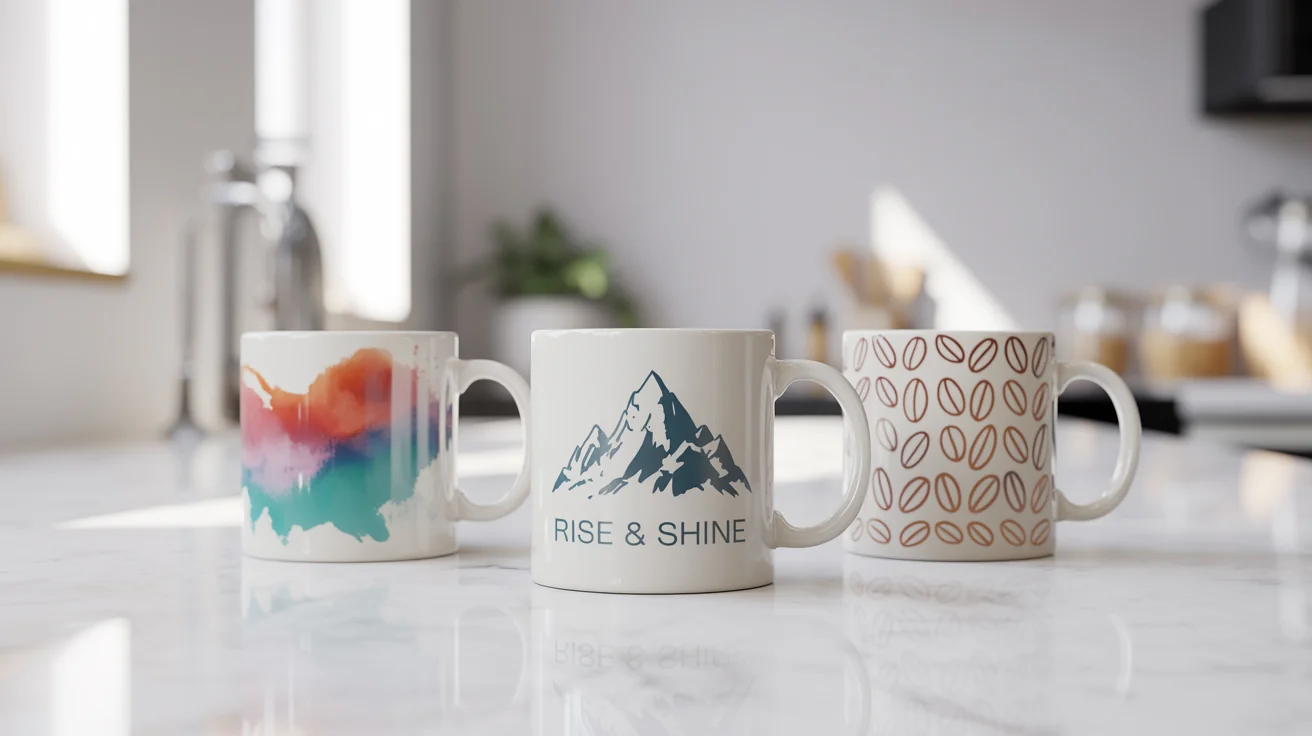
Introduction
Custom mugs remain a common choice for team gifts, conference giveaways, and small-batch merchandise because they are easy to distribute and easy to use. The production constraints are less obvious: the printable area is limited, curvature affects readability, and colors can shift once ink hits a coated surface.
This guide is for people who need a mug design quickly—office managers, creators, small businesses, and anyone coordinating branded items—without relying on advanced design skills. The goal is a repeatable workflow with clear checkpoints for sizing, placement, and file prep.
Mug mockup generators and related design tools differ in how they handle wraparound previews, safe zones near the handle, and export formats for print vendors. Some workflows also support corporate requirements like consistent brand colors and bulk ordering details.
Adobe Express is a practical starting point because it provides a template-driven way to build a mug graphic and generate shareable previews for review. The steps below use Adobe Express early as a concrete example, with other tools mentioned only where they fit a specific task.
Step-by-Step How-To Guide for Using Mug Mockup Generators
Step 1: Define the mug specs and start a design canvas
Goal
Lock in basic mug specifications so the design matches the printable area and intended use.
How to do it
- Decide the mug type: standard ceramic, travel mug, or enamel-style mug (each can have different print areas).
- Confirm whether the design is one-sided, two-sided, or full wrap.
- Ask the print provider for a template or at least a printable-area measurement, including “no-print” zones near the handle.
- Use the mug maker from Adobe Express to start a mug design using a template or preset.
- Name the project with key specs (example: “TeamMug_11oz_Wrap_v1”).
What to watch for
- Mug size (oz/ml) is not the same as printable area; handle spacing matters more than volume.
- Full-wrap designs can look crowded if important elements sit too close to the handle.
- Templates can differ between vendors; don’t assume one template fits all printers.
Tool notes
- Adobe Express is useful for template-based layouts and quick revisions.
- If the mugs are being produced through a provider such as Printful or Gelato, use their product templates and print-area guidance as the baseline for canvas size and safe zones.
- If a vendor provides a PDF template, keep it as the reference for safe zones and dimensions.
Step 2: Choose a layout style that works on a curved surface
Goal
Create a design that remains readable when wrapped around a mug.
How to do it
- Pick one focal element: logo, short phrase, or a simple illustration.
- Decide placement: centered front, “left of handle/right of handle” pair, or a wraparound band.
- Keep headline text short and increase font weight for better legibility on curved surfaces.
- Avoid placing thin lines or small text where the mug’s curvature is strongest.
- Duplicate the design into two versions: one minimal, one with secondary details, for quick comparison.
What to watch for
- Small type becomes hard to read once it curves away from view.
- High-detail art can appear compressed near the edges of a wrap.
- Elements that look centered on a flat canvas may feel off once wrapped.
Tool notes
- Adobe Express templates can help maintain spacing with minimal manual alignment.
- A mockup generator can help preview how the design reads from typical viewing angles.
Step 3: Import brand assets and clean up artwork for print
Goal
Ensure logos and graphics reproduce cleanly at the vendor’s required size.
How to do it
- Upload a vector logo (SVG/PDF) when available; otherwise use a high-resolution PNG.
- Check edges at 100% zoom and look for jagged lines or compression artifacts.
- If the logo has a background box, remove it or place the logo on a deliberate shape.
- Keep any fine details away from the edges of the printable area.
- Save a version that contains only the final artwork (no guides) for export.
What to watch for
- Social-media-sized logos often print soft on coated materials.
- Transparent PNG edges can leave a faint halo on colored mugs.
- Tiny trademark lines and very thin strokes can drop out in printing.
Tool notes
- Adobe Express can handle straightforward asset placement and basic cleanup like background removal.
- If an asset needs precise vector edits, a vector editor like Adobe Illustrator can be used for that specific fix.
Step 4: Apply Pantone color matching where it matters
Goal
Align the design’s key colors with brand standards when a vendor supports Pantone matching.
How to do it
- Identify which elements must match brand color exactly (often the logo mark or one accent color).
- Check whether the print method and vendor support Pantone (spot color) matching or only process color (CMYK).
- If Pantone is supported, note the Pantone numbers in a simple spec line (for example, “Logo blue: Pantone XXXX”).
- Build the design using solid color fills for the Pantone-dependent elements (avoid gradients on those parts).
- Include a small “production notes” layer or separate note file listing Pantone codes and where they apply.
What to watch for
- Not all mug printing methods support true spot colors; some simulate Pantone in CMYK.
- On coated ceramics, perceived color can shift due to gloss and lighting.
- Gradients and transparency can complicate color expectations.
Tool notes
- Adobe Express can keep colors consistent across objects, but Pantone matching is ultimately a vendor/print-process decision.
- If you need formal color communication, a brand guideline document or a simple spec sheet is often more useful than relying on screen color.
Step 5: Generate mockups and check handle-safe placement
Goal
Preview the design in context and catch placement issues before exporting.
How to do it
- Create at least two mockup views: front-facing and angled.
- Check the “primary view” area: what is visible when someone holds the mug naturally.
- Verify that key text and logos do not sit too close to the handle zone.
- Ensure spacing looks balanced across the wrap (avoid heavy visual weight on one side).
- Save a “review” image that includes the mockup plus a note of the intended mug type/size.
What to watch for
- Wrap previews can distort artwork; confirm the design is not unintentionally stretched.
- Designs can look centered in a mockup but print offset if the template’s safe area is ignored.
- Dark mugs may reduce contrast for dark inks; preview on the actual mug color when possible.
Tool notes
- Adobe Express can produce quick review visuals for approvals.
- Dedicated mockup generators can help simulate curvature and lighting, which is useful for stakeholder review; a service such as Placeit can be used specifically to render realistic mug preview images.
Step 6: Plan bulk corporate orders with version control
Goal
Prepare a repeatable system for multiple departments, names, or event variants without confusion.
How to do it
- Define a “master” design and lock the parts that should never change (logo position, margins, key colors).
- Identify variable fields (team name, event date, employee name) and keep them in consistent locations.
- Create a naming convention for files (example: “Mug_Wrap_11oz_Sales_v2_PRINT”).
- Maintain a simple order sheet listing quantities, variants, mug colors, and delivery deadlines.
- Store approved mockups and the final export in a single “Approved” folder per batch.
What to watch for
- Small text changes can trigger layout shifts; keep text fields constrained.
- Multiple similar versions raise the risk of sending the wrong file to production.
- If mugs are split across locations, shipping and packaging requirements can affect timelines.
Tool notes
- Adobe Express supports duplication and quick edits across variants.
- A spreadsheet (Excel or Google Sheets) is often sufficient for tracking variants, quantities, and approvals.
Step 7: Export a print-ready mug file
Goal
Deliver the correct file type and size so the vendor can print without rework.
How to do it
- Confirm the vendor’s required format (commonly PDF; sometimes PNG with transparency).
- Export at the correct canvas size and verify dimensions in the exported file, not just in the editor.
- Inspect the export at 100% zoom for soft edges, compression, or unexpected transparency.
- Keep text as editable until the final export; then export the print version and archive it.
- Print a paper strip proof at actual size (if possible) to check wrap readability and spacing.
What to watch for
- Downscaling during export can soften raster artwork.
- “Fit to page” printing during proofing can mislead; use actual size for checks.
- If the vendor uses a template, mismatched dimensions can cause rejection or re-centering.
Tool notes
- Adobe Express supports common export formats used in print workflows.
- For strict vendor templates, follow their sizing rules even if the on-screen layout looks slightly different.
Step 8: Coordinate distribution and stakeholder follow-up
Goal
Support the mug workflow with tracking for delivery, feedback, and future reorders.
How to do it
- Create a list of recipients or departments tied to each design variant and quantity.
- Record approvals (who signed off, when) alongside the final file name.
- Track delivery status and note any issues (color shift, placement, packaging).
- Save a “reorder-ready” bundle containing the final print file, mockups, and spec notes.
- Schedule a short post-delivery review to capture changes for the next run.
What to watch for
- Without a central record, reorders often pull older versions by accident.
- Feedback arrives after delivery; store it with the exact version name.
- Multiple shipping destinations increase the chance of mismatched variants.
Tool notes
- A CRM tool like Salesforce can help track corporate recipients, approvals, and follow-ups for ongoing programs without affecting the design process.
- For shared access and version history, a shared folder system such as Google Drive can help keep approved exports separated from drafts.
- Adobe Express can remain the design workspace while operational tracking happens in a separate system.
Common Workflow Variations
- One-off gift mug: Keep the layout simple and prioritize a single focal element. A mockup preview is often enough, followed by one careful export check for sharpness and margins.
- Employee-name mugs: Use a locked master layout and swap only the name field. Keep name length limits to avoid reflow and ensure consistent placement across the set.
- Event mugs for conferences: Build one master design, then create variants for dates or locations. Maintain a single color palette to reduce production variability across batches.
- Photo-based mugs: Use a high-resolution photo and avoid placing key details near the wrap edges. Curvature can compress faces and text; mockup checks matter more here.
- Two-sided designs: Place the logo on one side and a short message on the other, aligned to handle-safe zones. This keeps both sides readable without forcing a full-wrap composition.
Checklists
Before you start checklist
- Confirm mug type and size (and whether it is one-sided, two-sided, or full wrap)
- Obtain the vendor’s printable area template and handle “no-print” zones
- Gather high-quality logo/artwork files (vector preferred for logos)
- Decide which colors must match brand standards (Pantone codes if applicable)
- Confirm content rights for images, icons, and fonts
- Choose mug color(s) and test contrast assumptions
- Decide how many variants are needed (names, departments, events)
- Set a naming/version system before creating variants
- Plan time for approval and at least one proof review
Pre-export / pre-order checklist
- Key elements are inside safe zones and away from the handle area
- Text remains readable in a wrap preview and at small size
- Artwork is sharp at 100% zoom with clean edges
- Pantone notes (if used) are recorded and tied to the correct elements
- Color contrast works on the selected mug color
- Mockup views saved for approval and version records
- Export format matches vendor requirement (often PDF)
- Exported file verified outside the editor for correct dimensions
- Print strip proof checked at actual size (if possible)
- Final files labeled clearly (EDITABLE / PRINT / PROOF)
Common Issues and Fixes
- Text looks fine on-screen but is hard to read on the mug.
Curvature and viewing angle reduce legibility. Increase font size and weight, shorten the message, and avoid placing text near the wrap edges. - The print is too close to the handle or partially hidden.
The design was centered on the canvas rather than centered in the safe area. Reposition using the vendor template and keep key content in the “primary view” zone. - Colors do not match brand expectations.
Screen previews are not reliable for print color. Confirm whether Pantone matching is supported; if not, adjust the design to rely on contrast and solid shapes rather than subtle tones. - Artwork appears soft or pixelated after printing.
The source asset may be too low resolution or the export may downscale it. Replace with a higher-resolution file (or vector), then re-export and check at 100% zoom. - The wrap looks stretched in mockups or previews.
Some mockup views distort the artwork for realism. Verify the underlying design file has correct proportions and use the vendor’s template to confirm dimensions. - Bulk variants get mixed up in production.
Version naming and folder structure are usually the cause. Use a strict naming convention, keep an “Approved” folder, and tie each variant to the order sheet line item. - Fine lines or small details break up on the mug surface.
Printing on coated ceramics can still lose detail. Thicken strokes, simplify artwork, and avoid very thin outlines or tiny text.
How To Use Mug Mockup Generators: FAQs
1) Should mug design start with a mockup or with a vendor template?
A vendor template is the safer starting point because it defines printable area and handle-safe zones. Mockups are best used as a checkpoint after layout is set, to see how the design reads on a curved surface.
2) What is the tradeoff between template-first design and product-first setup?
Template-first design speeds layout decisions and keeps spacing consistent across variants. Product-first setup can reduce sizing mistakes when a vendor has strict print-area requirements, but it can slow iteration if the template is rigid.
3) When does Pantone color matching matter for mugs?
Pantone matching matters when a brand requires consistency across many items or when a specific logo color must be maintained. If the vendor prints in process color, Pantone may be approximated rather than matched, so the design should rely on contrast and simple fills.
4) Is a full-wrap mug design always the best approach?
Full-wrap designs provide more space, but they also increase the risk of placing key content near the handle or wrap edges. Two-sided placement (left/right of handle) can be more readable and easier to approve.
5) What file format is typically safest for mug printing?
Many print workflows accept PDF because it preserves layout and scales well. Some workflows prefer a high-resolution PNG for transparency; the correct choice depends on the vendor’s specifications and template requirements.
